Learn NinjaScript: Using [Display] to Clean Up the UI
A property’s C# identifier isn’t always what you want users to see in the indicator settings dialog. Period reads fine; atrPeriodLookback looks like a raw variable name. The [Display] attribute lets you set a friendlier label, add a tooltip, group related properties together, and control the order they appear.
Four parameters cover almost all of it: Name, Description, GroupName, and Order. Each is a separate concern — you opt into whichever matter for a given property — and together they turn NinjaTrader’s default property grid output into something that reads like a commercial indicator.
⚙️ What [Display] Actually Does
[Display] controls how a property renders in NinjaTrader’s property grid — the settings dialog a user sees when they right-click your indicator and pick Properties. Without it, the grid shows your raw C# identifier in a generic “Parameters” section, in an order NinjaTrader picks for you. With it, you control four things users actually see.
The full .NET DisplayAttribute class has more parameters, but NinjaTrader’s UI only honors these four reliably. Everything else can be left off.
Display Attribute Parameters
| Parameter | What it controls | Notes |
|---|---|---|
| Name | The user-facing label in the property grid. | Must be unique per object. Sharing Name across properties causes issues. |
| Description | Tooltip shown on hover in the property grid. | Does not render on expandable types like SimpleFont, Stroke, or ExpandableObjectConverter. |
| GroupName | Section header the property is grouped under. | Missing GroupName puts the property in the default Parameters bucket. |
| Order | Sequence within the GroupName. | Integer; smaller values appear first. Does not affect order across groups. |
🛠️ Before and After
Continuing the MySma indicator from last week’s post. Here are the three properties with only [NinjaScriptProperty] and [Range] applied — no [Display]:
public class MySma : Indicator
{
    // ... OnStateChange / OnBarUpdate as before ...

    [NinjaScriptProperty]
    [Range(2, int.MaxValue)]
    public int Period { get; set; }

    [NinjaScriptProperty]
    [Range(0.01, double.MaxValue)]
    public double Multiplier { get; set; }

    public bool ShowDots { get; set; }
}
Compile, drop on a chart, open Properties. The dialog shows all three properties in a generic “Parameters” section. The labels are the raw C# identifier names. There are no tooltips explaining what each does, and the order is whatever NinjaTrader decides.
Now with [Display] applied to each property — and a [Gui.CategoryOrder] class-level attribute to control which section appears first:
[Gui.CategoryOrder("Indicator Setup", 10100)]
[Gui.CategoryOrder("Display", 10200)]
public class MySma : Indicator
{
    // ... OnStateChange / OnBarUpdate as before ...

    [NinjaScriptProperty]
    [Range(2, int.MaxValue)]
    [Display(Name = "Period", GroupName = "Indicator Setup", Order = 1,
             Description = "Lookback period for the moving average.")]
    public int Period { get; set; }

    [NinjaScriptProperty]
    [Range(0.01, double.MaxValue)]
    [Display(Name = "Multiplier", GroupName = "Indicator Setup", Order = 2,
             Description = "Scales the plotted SMA value.")]
    public double Multiplier { get; set; }

    [Display(Name = "Show Dots", GroupName = "Display", Order = 1,
             Description = "Draws a dot at each bar's SMA value.")]
    public bool ShowDots { get; set; }
}
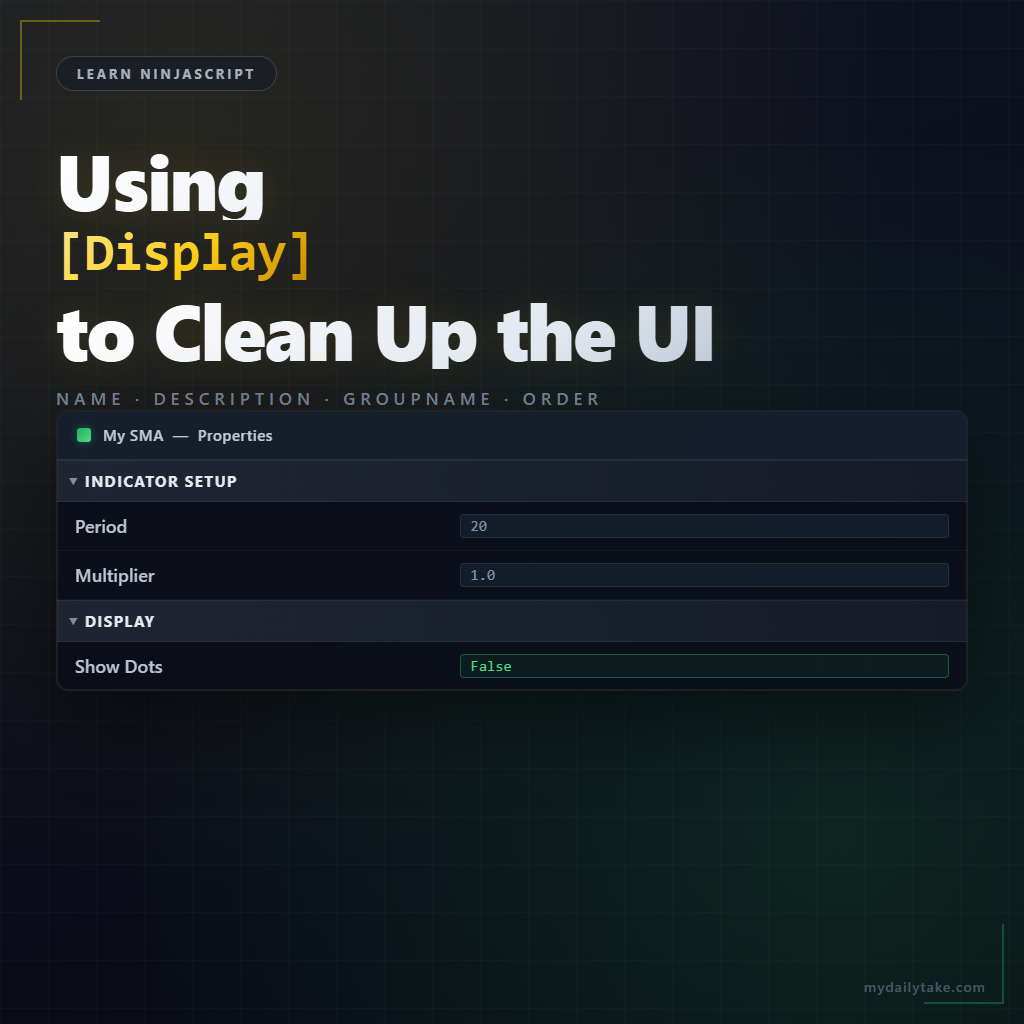
Same three properties, same code behavior. The dialog now shows an “Indicator Setup” section containing Period and Multiplier in the order you set, a “Display” section containing Show Dots, hover tooltips on each, and human-readable labels in place of raw variable names.
📚 Grouping Properties with GroupName
GroupName is the section header a property lives under in the property grid. Properties with the same GroupName string cluster together under that header. Properties with different strings split into separate sections. Properties with no GroupName at all fall into NinjaTrader’s default “Parameters” bucket.
The string has to match exactly across properties you want grouped. "Indicator Setup" and "Indicator Setup" (two spaces) end up in two sections that look identical to the reader but aren’t. Copy-paste the string or assign it from a constant if you’re worried about consistency across many properties.
The convention across the indicators on this site:
"Indicator Setup"for calculation inputs — periods, multipliers, mode enums."Display"for visual settings — colors, label toggles, font sizes."Alerts"for alert toggles and settings.
You don’t have to use those exact names. Pick whatever makes sense for your indicator. Consistency within a single indicator matters more than matching any particular convention.
🔢 Controlling Group Order with [Gui.CategoryOrder]
GroupName decides which section a property lives in. It does not decide the order those sections appear. For that, there’s [Gui.CategoryOrder] — a class-level attribute sitting above your class declaration, like in the “after” example above.
NinjaTrader’s built-in categories (Parameters, Data Series, Time Frame, Setup, Visual, Lines, Plots) have reserved order values from 1,000,000 up through 7,000,000. Your custom categories use the second argument of [Gui.CategoryOrder] to slot in anywhere in that range. Values below 1,000,000 put your group above everything else — which is usually what you want for calculation inputs the user should see first.
The deeper treatment of grouping and ordering comes next week. For this post, just know that [Display(GroupName)] alone gives you grouping, and pairing it with [Gui.CategoryOrder] at the class level gives you control over the sequence those groups appear.
📝 Pitfalls Checklist
- Name must be unique per object. The help guide calls this out explicitly — two properties with the same
Namestring have undesirable consequences in the property grid. - Description tooltips don’t render on expandable types.
SimpleFont,Stroke, and any type using anExpandableObjectConverterignore theDescriptionparameter. Don’t waste text there. - Forgetting [Display] entirely doesn’t break anything. The property still works —
[NinjaScriptProperty]alone makes it reachable and serializable. But the dialog shows your raw C# identifier in the default “Parameters” section. Looks unfinished. - Typo’d GroupName strings create duplicate sections. Two properties with almost-identical strings (extra space, different capitalization) split into two sections the user reads as the same thing.
- [Gui.CategoryOrder] is class-level only. Attach it above the class declaration, not inside the class body. The attribute does nothing in the wrong spot.
- Order sequences properties within a GroupName. It does nothing across groups. That’s what
[Gui.CategoryOrder]is for. Easy to confuse. - ResourceType is optional. NinjaTrader’s own code uses it for localization across supported languages. You can ignore it in custom indicators — the help guide says so explicitly.