Order Line Decorator for NinjaTrader 8
When you have a position on in NinjaTrader, the chart shows your stop, target, and entry lines — but it doesn’t tell you what any of them are worth. You’re left doing the arithmetic in your head, or looking away from price to read the order panel, right when the trade is live and you can least afford the distraction.
The Order Line Decorator puts that information on the lines themselves. Every working stop and target gets a compact label box showing its distance from your average entry in ticks and points, its dollar value, and its percentage of account — and on targets, the trade’s risk-to-reward ratio. The entry line shows position size and live unrealized P&L. Everything follows whichever account is selected in Chart Trader, so it stays correct when you switch accounts mid-session.
This is a complete clean rewrite. The original concept was gemify’s “Order Line Decorator,” shared on the NinjaTrader Ecosystem (since removed). Order classification, aggregation, label composition, color rules, and layout math were all re-derived from observed behavior — no code was adapted from gemify’s source. Credit to gemify for the idea; the implementation here is MyDailyTake’s.
gemify eventually asked NinjaTrader to pull all of their code from the Ecosystem, but while they were active they put out a lot of great shares to the community — wherever you are now, hope all is well. In the spirit of what they shared, this indicator is open source too and will stay that way.
🧰 What It Shows You
Each decorator box sits just to the left of NinjaTrader’s built-in order marker, lined up with the order’s price. What goes in the box is up to you — ticks, points, dollar value, percent of account, and R:R are independent toggles — but the defaults give you the full readout at a glance.
Two things are color-coded so you don’t have to read them:
- Stops that are in profit. Once a stop has moved past break-even, its box switches to the stop-in-profit color. A green box on your stop means it isn’t risk anymore — it’s locked-in gain.
- Targets below your minimum R:R. Set a minimum risk-to-reward and any target that doesn’t meet it turns the warning color. If your bracket doesn’t clear your own threshold, you see it without checking.
The entry line can also carry the aggregate risk and reward totals across every working order — the full dollar amount you have at risk and the full reward on the table. A position with no stop reads “Risk $0.00”, which tells you something’s missing.
⚙️ Settings
The settings are grouped into five sections. Display controls which orders get decorated and which data fields appear in the labels. Labels sets the text prefix for each line type. Entry Line governs the entry-price decoration. Appearance holds every color, opacity, and border option. UI Adjustments has the one pixel-level placement control.
Display
| Parameter | Description |
|---|---|
| Show Stops | Decorate working stop orders. |
| Show Targets | Decorate working target (limit) orders. |
| Ticks | Show the distance from average entry in ticks. |
| Points | Show the distance from average entry in points. |
| Currency | Show the dollar value at each level, scaled by position size. |
| % of Account | Show each value as a percent of account cash value. |
| R:R Ratio | Append the risk-reward ratio to target labels. |
| Min R:R | Highlight target boxes when the trade's R:R falls below this minimum. 0 disables the check. |
| Separator | Text between data fields (e.g. ' : ' or ' | '). |
Labels
| Parameter | Description |
|---|---|
| Stop Label | Text prefix for stop order lines. |
| Target Label | Text prefix for target order lines. |
| Entry Label | Text prefix for entry price line. |
Entry Line
| Parameter | Description |
|---|---|
| Show Entry Line | Decorate the entry price with position info and unrealized P&L. |
| Show Risk / Reward Totals | Add the aggregate risk and reward across all working orders to the entry label. |
| Entry Fill Color | Fill color of the entry-price decorator box. |
Appearance
| Parameter | Description |
|---|---|
| Stop Fill Color | Fill color of stop-order decorator boxes. |
| Highlight Stop in Profit | When a stop has moved past break-even, render its box in the stop-in-profit color. |
| Stop-in-Profit Fill Color | Fill color for stop boxes that are locking in profit (past break-even). |
| Target Fill Color | Fill color of target-order decorator boxes. |
| Target Below-R:R Fill Color | Fill color for target boxes when the trade's R:R is below the configured minimum. |
| Outline Color | Color of the box border and connector line. |
| Text Color | Color of the label text. |
| Box Opacity % | Fill opacity for decorator boxes (0 = transparent, 100 = solid). |
| Border Width | Width of the box border in pixels. 0 hides the border. |
| Show Connecting Line | Draw a line from the decorator box to the right edge. |
UI Adjustments
| Parameter | Description |
|---|---|
| Box-to-Order Gap | Pixel gap between the decorator box and NinjaTrader's built-in order marker. |
🧠 How It Works
- Track the Chart Trader account. The decorator follows whichever account is selected in Chart Trader’s dropdown. Switch accounts and it re-targets immediately; close Chart Trader and it clears.
- Read the working orders. On each price update it scans that account’s position and working orders for the chart’s instrument.
- Aggregate by level. Stop or target orders resting at the same price are grouped and their quantities summed, so a scaled bracket shows one box per price instead of one per order.
- Measure each level. For every level it computes the distance from your average entry in ticks and points, the dollar value scaled by position size, and the percentage of account cash value.
- Score risk-to-reward. The nearest stop and nearest target define the trade’s R:R, which is appended to every target label.
- Color-code the exceptions. A stop past break-even gets the stop-in-profit color; a target whose R:R falls short of your minimum gets the warning color.
- Draw. Each level renders as a label box just left of the order marker, with an optional line connecting it to the chart edge. The entry line adds position size, unrealized P&L, and — if enabled — the risk and reward totals.
📊 Chart Example
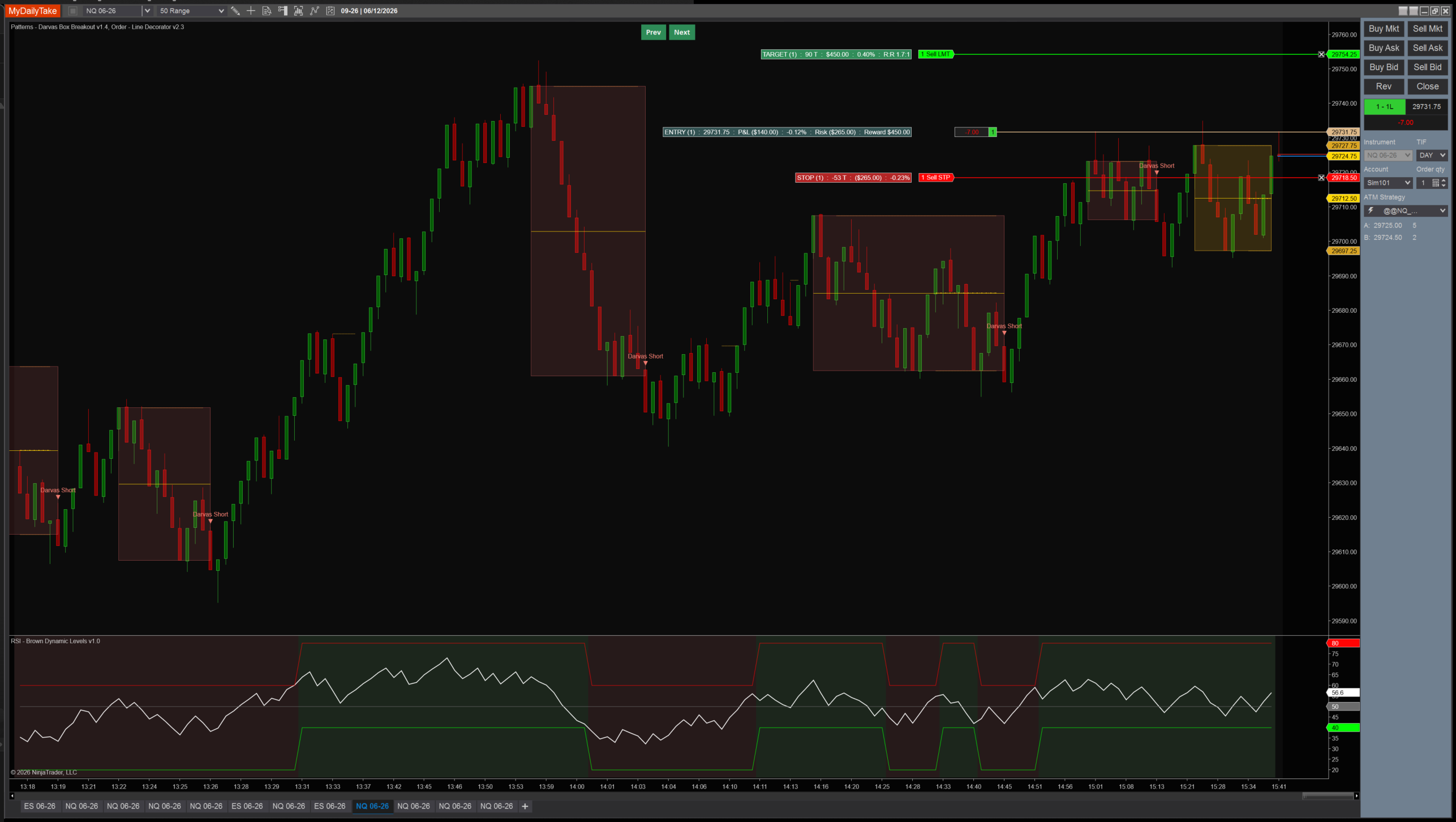
The decorator boxes sit just left of the working order lines — stops, targets, and the entry — each labeled with its distance from entry, dollar value, and, on targets, the trade’s risk-to-reward.
📦 Download
Installing it:
- Download the .zip above.
- In NinjaTrader, go to Tools → Import → NinjaScript Add-On.
- Select the downloaded .zip.
- The indicator appears under Indicators → indMyDailyTake → Order – Line Decorator. Add it to a chart with Chart Trader open.


The Order Line Decorator is an open-source MyDailyTake build — its concept inspired by gemify’s “Order Line Decorator,” shared on the NinjaTrader Ecosystem. © 2026 MyDailyTake.com, all rights reserved. Provided as-is, without warranty of any kind; use at your own risk.