TradingView Fractals Trend [BigBeluga] Conversion to NinjaTrader 8
Bill Williams fractals — five-bar pivots where the middle bar’s high is highest (or low is lowest) — are a clean structural primitive but useless on their own as a trade signal. BigBeluga’s Fractals Trend takes the next step: store the most recent N fractal highs and N fractal lows, smooth them into trend bands, and use the cross between them and price to determine bias.
The output is two trend bands (one anchored to recent fractal highs, one to recent fractal lows), filled translucently between them and the active trend line. Clean fractal dots mark each detected swing pivot retroactively.
This post is the NinjaTrader 8 conversion. The full source compiles standalone in indTradingView/, exposes the trend state and the active fractal-anchored line as Series<> outputs for strategy use, and is yours to download as a NinjaScript Archive.
Original Pine Script: Fractals Trend by BigBeluga
License: Attribution-NonCommercial-ShareAlike 4.0 International (CC BY-NC-SA 4.0)
🆚 What Makes Fractals Trend Different
Standard fractal indicators just plot dots at the pivot bars and leave you to interpret them. Fractals Trend does the interpretation: it stores the last N pivot highs and N pivot lows in rolling buffers, then computes a smoothed band on each side. The bands themselves form a trend channel, and the active line in that channel is the trend bias.
Three band-aggregation modes. The Bands Type setting lets you pick how the buffered fractals are aggregated into the band — average (smoothest), maximum / minimum (most reactive), or median (robust to outliers). Each gives a different feel — average is the cleanest visual, max/min reacts faster to fresh pivots.
Translucent SharpDX cloud fill. The space between the active trend line and the price (or the opposing band) is filled translucently in the trend’s color. This is the canonical SharpDX trapezoid template that several other conversions reference — simple, fast, and cleanly anti-aliased.
⚙️ Settings
Fractals Trend exposes its parameters in two property groups: the calculation inputs that drive the fractal detection and band aggregation, and the display group with marker toggles plus the up/down trend colors.
Indicator Setup
| Parameter | Default | Description |
|---|---|---|
| Fractals Detection Length | 5 | Half-window for fractal detection. A pivot is confirmed when the middle bar of a (2 × FractalLen + 1)-bar window has the highest high or lowest low. |
| Fractals Storage Qty | 5 | How many recent pivots (per side) to retain in the rolling buffer for band aggregation. |
| Bands Type | Avg | Aggregation mode: Avg (mean of buffer), Max/Min (most extreme), or Median. |
| Shadow Transparency | 80 | Opacity of the SharpDX cloud fill (0–100). Lower = more translucent. Set to 100 to fully hide the fill. |
Display
| Parameter | Default | Description |
|---|---|---|
| Show Fractal Markers | True | Draw a triangle marker at each detected swing fractal pivot bar (drawn FractalLen bars after detection). |
| Up Trend Color | Lime | Active trend line, lower band, and bull cloud fill in an up-trend. |
| Down Trend Color | Red | Active trend line, upper band, and bear cloud fill in a down-trend. |
🧠 How It Works
Each bar runs three logical stages: fractal detection on the rolling window, buffer maintenance, and trend-state evaluation.
- Fractal detection. Examine the (2 × FractalLen + 1)-bar window centered on bar X − FractalLen. If the middle bar has the highest high in that window, it’s a confirmed up-fractal; lowest low, a down-fractal. Detection happens FractalLen bars after the pivot bar — a non-repainting tradeoff.
- Buffer maintenance. Maintain two rolling buffers (size FCount) of the most recent up-fractal prices and down-fractal prices. Each new fractal pushes onto the appropriate buffer; older entries fall off.
- Band aggregation. Per the Bands Type setting, aggregate each buffer into a single band value: average for smooth, max for the highest recent up-fractal, min for the lowest recent down-fractal, or median for outlier-robust.
- Trend determination. Trend is up when close > down-band (price has cleared the lowest recent fractal); trend flips down when close < up-band (price has fallen below the highest recent fractal).
- Cloud fill render. SharpDX trapezoid geometry between the active trend line and the price (or opposing band) is drawn each render frame in the trend-side color, with opacity controlled by Shadow Transparency.
- Markers and signals. Triangle markers at each detected fractal pivot bar (retroactively, FractalLen bars after detection). Trend-flip dots at the bar where the trend state changes.
The indicator is non-repainting in trend evaluation but the fractal markers necessarily appear at pivot bars FractalLen bars after the fact — that’s how Bill Williams fractals work.
🛠️ Using It in a Strategy
Fractals Trend is built around the trend state. The most natural strategy use is to enter on TrendSeries flips and use FractalLineSeries as a trailing stop level.
Below is the lifecycle: instantiate in State.DataLoaded, then in OnBarUpdate detect trend flips and trail along the fractal line.
private FractalsTrend fractals;

protected override void OnStateChange()
{
    if (State == State.SetDefaults)
    {
        Name = "FractalsTrendStrategyExample";
    }
    else if (State == State.DataLoaded)
    {
        fractals = FractalsTrend(
            5,                                  // Fractals Detection Length
            5,                                  // Fractals Storage Qty
            FractalsTrend_BandsType.Avg,        // Bands Type
            80,                                 // Shadow Transparency
            true                                // Show Fractal Markers
        );
    }
}

protected override void OnBarUpdate()
{
    if (CurrentBar < 50) return;

    bool flippedUp   = fractals.TrendSeries[0] ==  1 && fractals.TrendSeries[1] != 1;
    bool flippedDown = fractals.TrendSeries[0] == -1 && fractals.TrendSeries[1] != -1;

    if (flippedUp)
    {
        EnterLong();
        SetStopLoss(CalculationMode.Price, fractals.FractalLineSeries[0]);
    }
    if (flippedDown)
    {
        EnterShort();
        SetStopLoss(CalculationMode.Price, fractals.FractalLineSeries[0]);
    }

    // Trail the stop along the active fractal line every bar
    if (Position.MarketPosition == MarketPosition.Long)
        SetStopLoss(CalculationMode.Price, fractals.FractalLineSeries[0]);
    else if (Position.MarketPosition == MarketPosition.Short)
        SetStopLoss(CalculationMode.Price, fractals.FractalLineSeries[0]);
}
Both outputs are Series<>, so fractals.TrendSeries[5] reads the trend state five bars ago and the Update() wrapper handles sync on every read.
Public Outputs
| Output | Type | Description |
|---|---|---|
| TrendSeries[0] |
Series | 1 when the trend is up, −1 when down, 0 before the first fractal in each direction is detected. |
| FractalLineSeries[0] |
Series | The active fractal-anchored trend line value — usable as a stop level. |
🔄 Conversion Notes
A few things changed in the translation from Pine Script to NinjaScript:
Rolling fractal buffers via List<double>. Pine’s var array with array.shift/array.unshift becomes a List<double> with RemoveAt(Count-1) and Insert(0, ...) on each new fractal — same FIFO semantics, idiomatic NT8.
Bands Type as an enum. Pine’s string-input switch is replaced with a typed C# enum (FractalsTrend_BandsType) so the property dialog renders a proper dropdown.
SharpDX cloud fill via PathGeometry. Pine’s fill() between the active line and the trapezoid-bounded price becomes per-bar SharpDX PathGeometry in OnRender. The opacity is computed as (100 − Shadow) / 100 so the property reads naturally as ‘transparency’ rather than ‘opacity.’
Fractal markers via Draw.TriangleUp / Draw.TriangleDown. Pine’s plotshape becomes per-pivot Draw.Triangle* calls with barsAgo = FractalLen to anchor the marker at the historical pivot bar.
Series-based public outputs. The trend state and active fractal line are exposed as Series<int> and Series<double> for strategy consumption — index back in time freely, Update() wrapped in each getter.
📦 Download
The full source is available as a free NinjaScript Archive. To install:
- Download the
.zipfile below. - In NinjaTrader 8, go to Tools → Import → NinjaScript Add-On.
- Select the downloaded
.zipfile. - The indicator will appear under Indicators → indTradingView → Fractals Trend [BigBeluga] on your chart.
📊 Chart Example
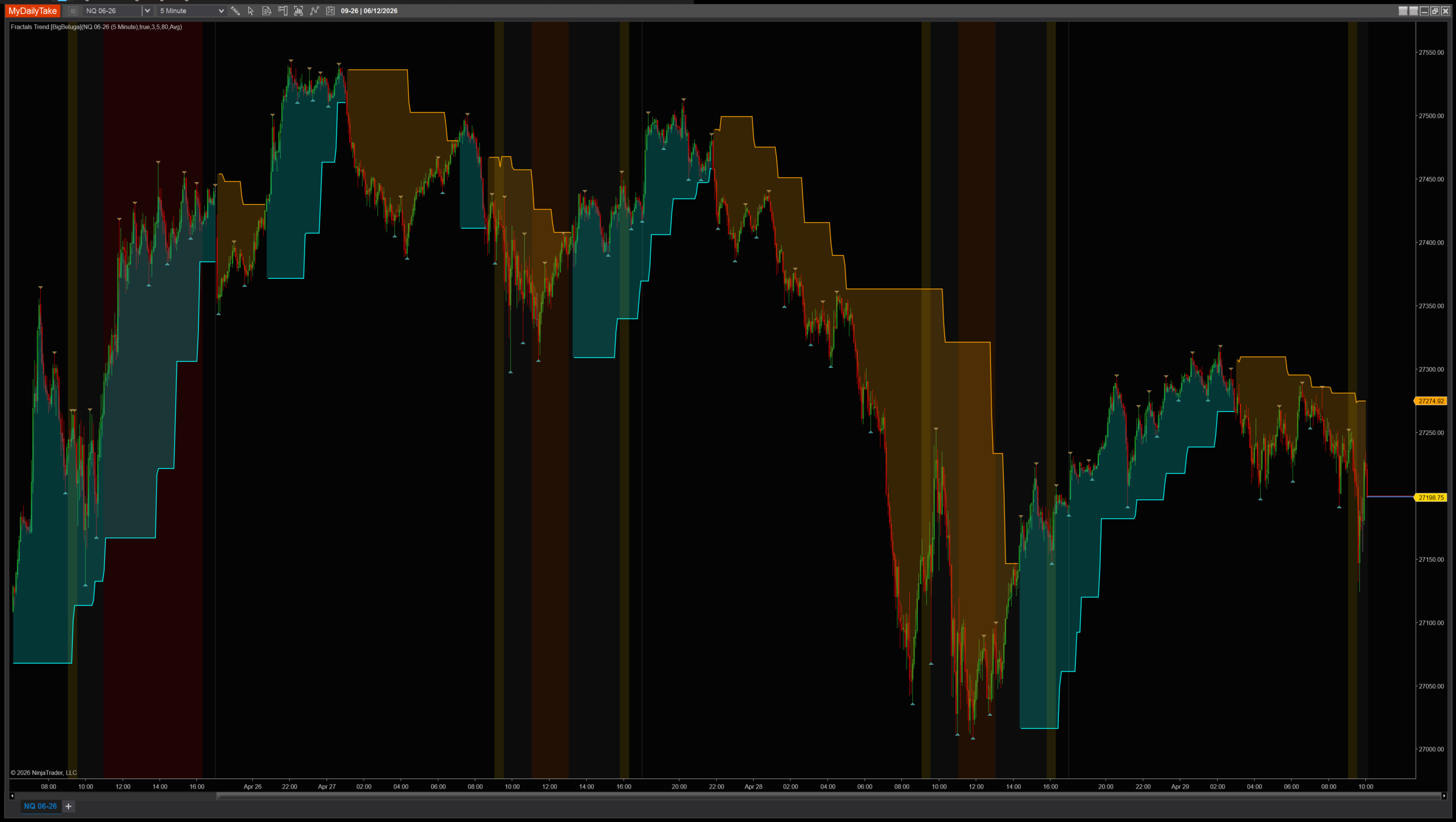
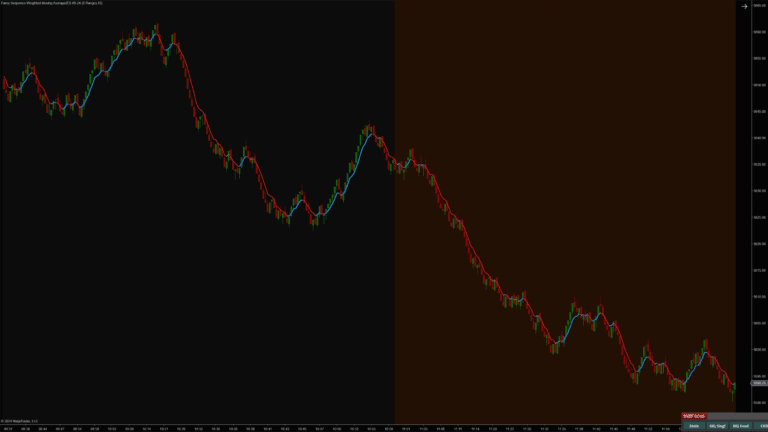
Fractals Trend on a 1-minute chart with default settings (FractalLen=5, FCount=5, Avg bands). The lime and red trend bands hug the most recent fractal pivots; the active line tracks whichever side price is currently respecting. Triangle markers drop at each confirmed pivot, and the translucent cloud fill makes the trend zone unmistakable at a glance.


The original Pine Script™ code is by BigBeluga and is licensed under the Attribution-NonCommercial-ShareAlike 4.0 International (CC BY-NC-SA 4.0). This NinjaTrader 8 adaptation is by MyDailyTake.com. The use of BigBeluga’s name or adapted code does not imply endorsement by the original author.